Import from Asana
Easily import all of your Asana projects and tasks directly into Notion 📥
Jump to FAQsImporting from Asana allows you to move your organization’s teams, projects, and tasks in Asana into Notion. Any member on any plan can take advantage of the Asana importer.

Importing from Asana vs. syncing Asana with Notion
Importing your Asana data into Notion is best if you want to move from Asana and use Notion as the primary tool for your work. The data will be duplicated into Notion, but not synchronized with Asana.
Synced databases allow you to connect Asana to Notion without importing any data. You might prefer to use synced databases if you use both Asana and Notion for your work. Synced databases only go one direction, meaning that changes will need to happen in Asana in order for updates to reflect in Notion.
To add a synced database from Asana, simply paste a project link right into a Notion page. Learn more about synced databases here →

Learn more about importing projects from Asana
✅ Imports | ❌ Doesn't import |
Projects | Automations |
Tasks | Dependencies |
Subtasks | Reporting |
Sections | Some custom fields |
Assignees | External integrations |
Due dates | Rules |
Descriptions | Permissions (role type, project permissions, or team-level access controls) |
Comments | |
Attachments |
Asana projects → Notion projects
Asana tasks → Notion tasks
Asana teams → Notion teamspaces
Asana organizations or workspaces → Notion workspaces
Your Projects and Tasks databases are related to each other, in line with our Projects & Tasks template.
Import up to ~6,000 tasks and ~200 projects. Larger imports may fail.
Tip: Split large migrations into multiple batches.
Attachment rate limit: Each workspace can import ~100–120 file attachments per day.
Tip: Spread attachment-heavy imports across multiple days.
Once the import begins, you can safely close your browser. We'll send you an email when your import is complete.
Review the progress of your import in
Settings→Import. There you can see the status of your import and completed imports.
Before you begin
You must be associated with a team in Asana, even if you're the only person on that team.
You can only import one Asana workspace into Notion at a time.
Each Asana team will be imported into one Notion teamspace.
Multiple projects imported into one teamspace will go into the same Projects and Tasks databases. To import into separate databases, import in batches.
Import into Notion
Go to
Settingsin your sidebar →Import→Third party imports→Asana. Alternatively, use the/asanacommand in a page and select the option underImport.Sign into Asana and grant the requested permissions.
Under
Choose Asana workspace, select the Asana workspace you want to import.Select the projects you'd like to import.
Select the Notion teamspace your projects should be imported into.
Check the box next to your workspace name to
Exclude completed projectsorSelect all projectsas needed.Select
Next.Choose to
Select all properties(default) orCustomize properties. Note that some default properties must be imported.Choose whether the
Statusproperty in Notion should be mapped to yourSectionorCompletedproperty in Asana.Select
Import.
Your Asana projects and tasks are imported into Projects and Tasks databases in Notion, pre-populated with several views:
Projects database views
Active (table view): Shows projects with a to-do or in-progress status.
Timeline view: Displays project name, status, owner, and completion rate.
Board view: Groups projects by status (Planning, Backlog, On Track), sorted by descending priority.
All (table view): Displays all imported projects.
Tasks database views
By Project (table view): All tasks grouped by project.
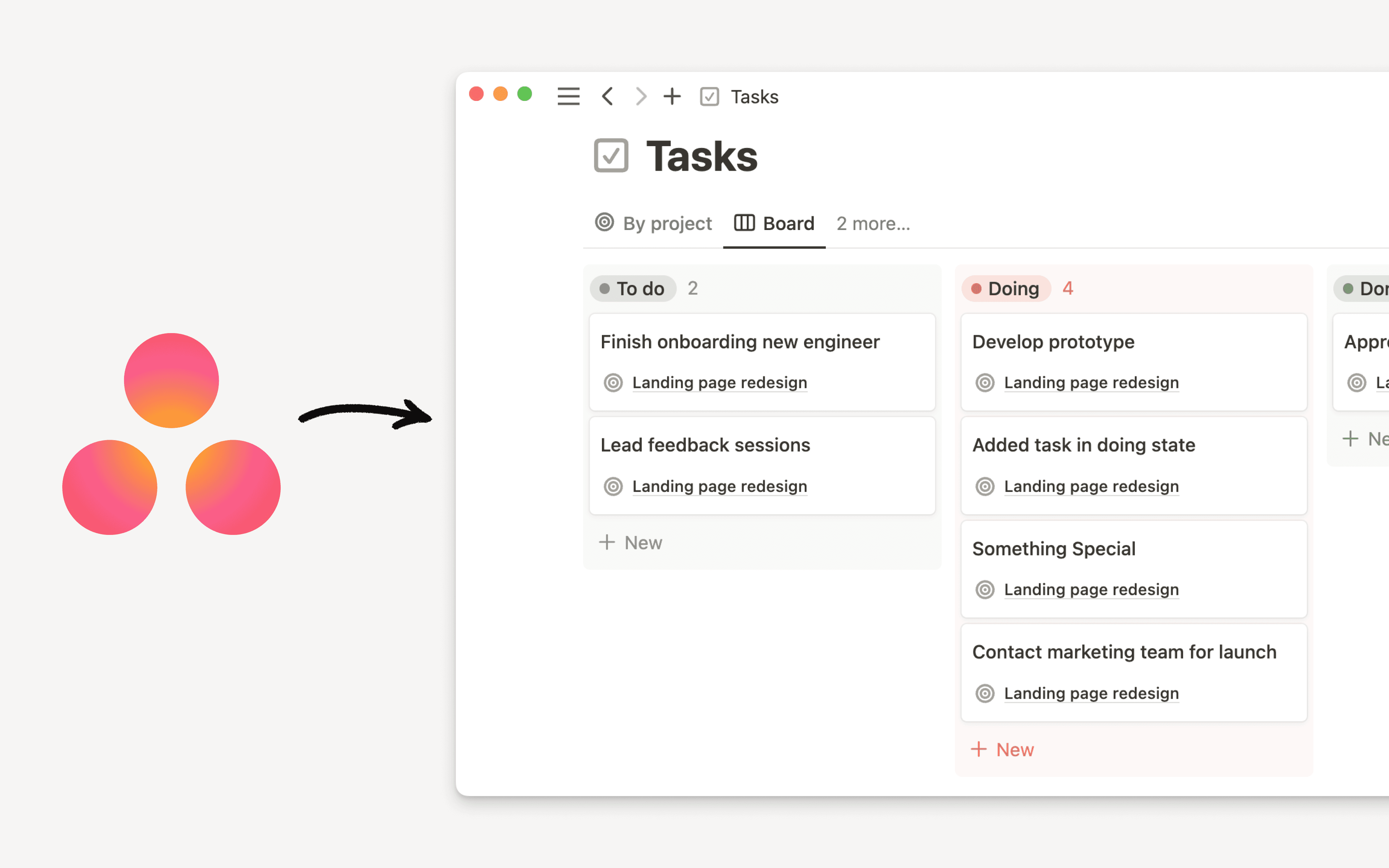
Board view: Tasks grouped by status, sorted by descending priority.
All tasks (table view): All imported tasks.
Mine (table view): Tasks assigned to you.
Calendar view: Tasks by date with assignee and status.
When your import completes, you'll receive an import log in the Private section of your sidebar with a summary and the Notion teamspace your content was imported into.
Asana OAuth may require admin approval depending on your org settings or plan tier. Import scope is limited to what the authenticated user can access.
Tip: Ask your Asana admin to approve the Notion OAuth app in advance.
Custom fields may not map 1:1 to Notion properties. Some fields may need to be added manually after import. For automation-heavy setups, consider a tool like Zapier or Make.
The import is a one-time event; future changes in Asana won't automatically reflect in Notion.
Projects must belong to a team in Asana to appear in the importer.
Tip: Double-check all projects are assigned to teams before starting.
Projects aren't showing in Notion
Why this happens: Projects aren't linked to a team in Asana. Notion's importer only brings in projects that belong to a team.
To fix: In Asana, assign each missing project to a team before running the import.
Task counts don't match between Notion and Asana
Why this happens: In Asana, subtasks can be directly linked to projects and counted in project totals. In Notion, subtasks only live under their parent tasks and aren't directly tied to projects.
To fix: Check whether subtasks are linked directly to projects in Asana. Expect count differences unless those subtasks are manually surfaced in Notion.
I can't find some boards from the same Asana project after import
Why this happens: The importer only brings in selected projects; boards might be in a different Asana workspace or team; archived or completed projects may have been excluded; or the run completed with partial results.
To fix: Re-run the import and select those specific projects. Ensure they're in the same Asana workspace and team, uncheck "Exclude completed projects" if needed, verify the target teamspace, and review the import log page created after the run.
When your import completes, you will receive an import log in the Private section of your sidebar. In this log you will find a summary of your import, including the Notion teamspace that your Asana projects and tasks were imported into.
FAQs
How are the Task assignees imported if that assignee is not present in Notion?
How are the Task assignees imported if that assignee is not present in Notion?
If the Tasks assignees imported do not have a Notion, the user would be added as a placeholder to the workspace.
These placeholder accounts will attribute comments and mentions. If and when these users sign up, they will be mapped to the corresponding placeholder account, and comments and mentions will be attributed to the correct user.
How long does it take for the Asana Importer tool to import a large number of tasks?
How long does it take for the Asana Importer tool to import a large number of tasks?
Import times may range from a few minutes to several hours depending up on the size of the import. You will receive an email notification once the import is complete. You can track your import in Settings → Import, where you’ll see its status and any completed imports.
Is there a limit to the number of tasks that can be imported at once?
Is there a limit to the number of tasks that can be imported at once?
There are no hard limits on number of tasks that can be imported, but we recommend limiting imports to 20K tasks per teamspace.
How are subtasks imported?
How are subtasks imported?
They are imported as subtasks (along with dependencies) that are within the same database.
Do updates I make in my Asana account automatically get updated in Notion?
Do updates I make in my Asana account automatically get updated in Notion?
No, the import is a one-time action.
We do not maintain a connection with your Asana account and any changes you make in your Asana account after the import will not automatically update in Notion.
Is there a way to preview the import before they are added? Can I undo an import?
Is there a way to preview the import before they are added? Can I undo an import?
There is no way to preview or undo, but during the process you will select which specific projects you wish to import.
In addition you can easily delete specific projects or tasks within Notion. You can even delete the entire database and start over.