Import data into Notion

If your docs, notes, and spreadsheets are spread across different apps, you can bring them into Notion to keep everything in one place 🚚
Jump to FAQsNotion imports are available on desktop and web (not on mobile yet).
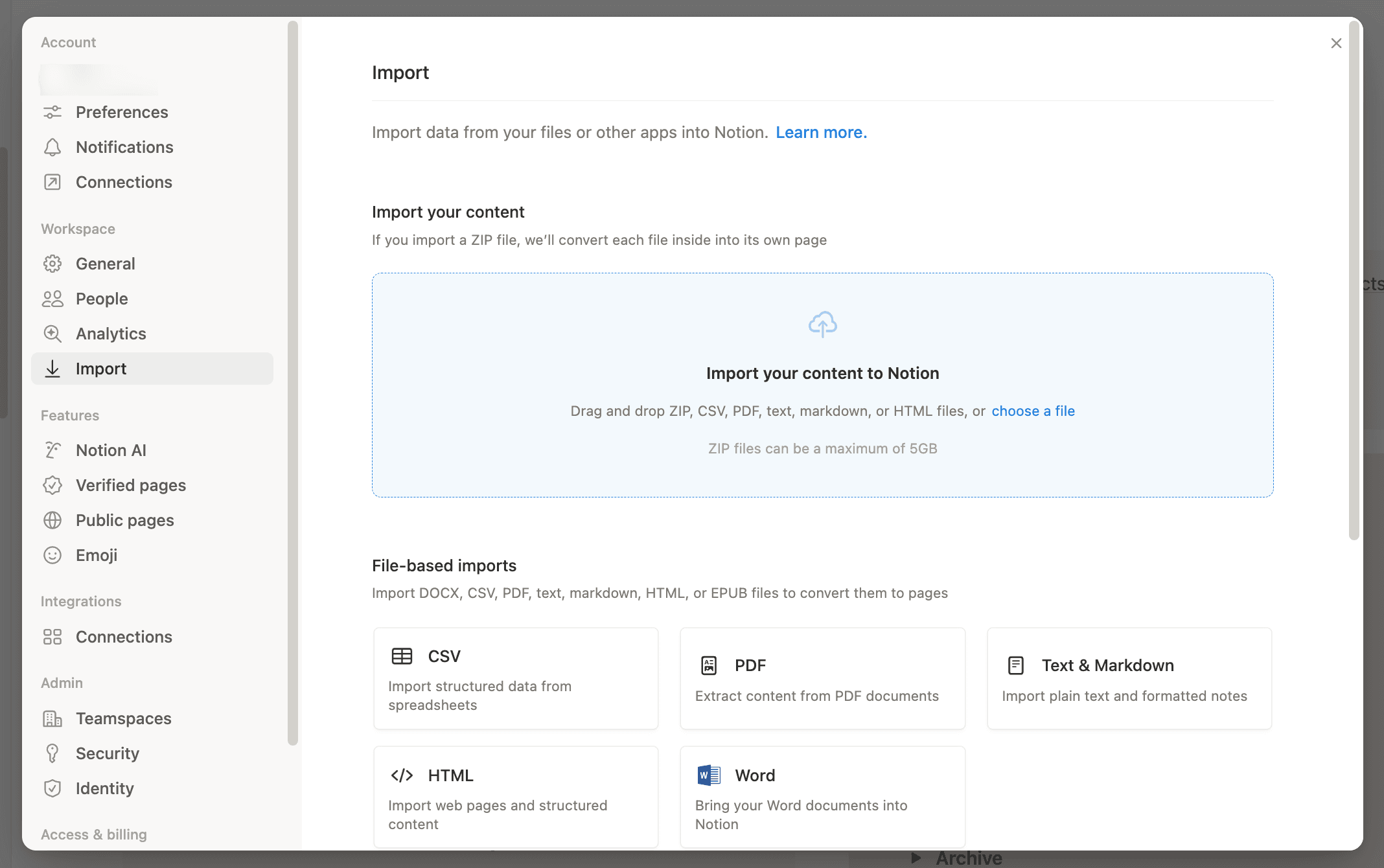
To start an import, go to Settings → Import, or type / on any page and search for the importer you need.
Before you import, take a quick look at What imports, What doesn’t import, and Limitations below so there are no surprises.
Notion lets you directly import the following file types:
Plaintext (.txt)
Text & Markdown (.txt, .md or .markdown)
Microsoft Word (.docx)
CSV (.csv)
HTML (.html)
PDF (.pdf)
ZIP (.zip)
You can also import data from a number of apps like Confluence, Asana, Evernote, and Trello, among others.
There are a couple of ways to start an import:
Type
/on any page and search for what you want to import (likeCSVorTrello).Or go to
Settingsin your sidebar →Import, then choose an app or file type.
Track your import progress:
As soon as you begin an import, you can view the upload time, status, and size.
Go to
Settingsin your sidebarNavigate to
ImportSelect the
In progressorCompletetab

Some connections have their own pages:
For Confluence, click this article →
For Asana, click this article →
For Monday.com, click this article →
Evernote notebooks import as pages, and notes import as database items.
You can bring your Evernote notebooks into Notion and keep the same structure.
Go to
Settings→Import. Then, chooseEvernote.Sign into your Evernote account.
Authorize Evernote to connect to Notion.
Once your Evernote account is linked, check the boxes next to the notebooks you'd like to move and click
Import.Your Evernote notebooks will appear as pages in Notion's sidebar. Inside, you'll find your notes as items in a list database.
Each note can be dragged and dropped anywhere else within Notion.
What imports:
Notebooks
Notes
What doesn’t import:
Evernote Teams
How it maps to Notion:
Notebooks import as pages in your sidebar.
Notes inside each notebook import as items in a list database, and gallery views at import.
Limitations:
Reliable up to ~5,000 notes. Larger imports may fail.
There’s no progress bar or status tracking, and Evernote rate limits can force long backoffs during import.
Images within notes may not render correctly and may need cleanup after import.
Troubleshoot common errors:
If an import appears stuck, wait to see if it resumes, then try importing smaller batches.
If you don’t see new notes being added for 3 consecutive hours, escalate for investigation.
If created/updated dates look wrong after import, that can be expected. Add a Date property in Notion after import if needed.
Trello boards import as a Notion database, with cards as items. You can import a Trello board into Notion in just a few steps.
Type
/Trelloand hit enter.Log in to your Trello account.
Grant access to Notion so you can import your Trello boards.
Once you've linked your Trello account, select the boards you'd like to migrate from the dropdown menu.
What imports:
Boards
Lists
Cards
What doesn’t import:
Any Trello content that can’t be represented as a board, list, or card may not transfer.
How it maps to Notion:
Boards import as a Notion database.
Cards import as database items.
Lists import as database groups
Limitations:
Reliable for up to ~5,000 cards per board. For very large boards, split them into smaller boards before importing.
Recommended limit of ~5,000 comments per board. Exceeding this can cause comment loss (even if the import succeeds).
Imports are board-by-board only, not full workspace imports.
Power-Ups, automations, and permissions don’t carry over and need to be rebuilt in Notion.
Troubleshoot common errors:
If you can’t connect Trello or get stuck on a loading spinner, remove and re-add your Trello account, then confirm you have access to the boards you’re importing.
If you see an “Unrecognized URL” error, make sure you’re using a supported Trello URL format.
Import Quip by exporting individual pages (Markdown or HTML), then importing into Notion.
Quip only lets you export one page at a time. You can still move pages to Notion — you’ll just import them one by one.
In Quip, click the document icon at the top left of any page and choose
Export.Export as Markdown or HTML.
In Notion, go to
Settings→Import.Upload the file you exported from Quip.
What imports:
Individual Quip pages (exported as Markdown or HTML)
What doesn’t import:
Bulk exports of multiple Quip pages (Quip only allows exporting one page at a time).
Live apps
Polls
Spreadsheets
How it maps to Notion:
Each exported file imports as a Notion page.
Limitations:
You can’t bulk-export multiple pages directly from Quip’s UI, so self-serve migrations can be slower.
Formatting fidelity: complex tables, special callouts, and advanced formatting may degrade. Expect some manual cleanup after import.
Comments, permissions, and revision history don’t transfer in self-serve exports.
Very large files or large ZIPs can fail or partially import. Import in smaller batches if needed.
Troubleshoot common errors:
If complex tables import poorly: simplify the table in Quip before export, or export table data as CSV and import it into a Notion database.
If images or attachments are missing: make sure assets are included in the export bundle, or re-upload them in Notion after import.
If you see “Import failed” for Quip HTML/Markdown: try Markdown instead of HTML (or vice versa), split large docs/ZIPs into smaller batches, and re-export from Quip with assets included.
In Dropbox Paper, you can export files individually or all at once.
To migrate individual files:
In Dropbox Paper, choose
Downloadfrom the menu at the top right of your screen.Download the page as
Word.In Notion, go to
Settings→Import→Word.Upload the
.docxfile you downloaded.
To migrate all your documents at once:
In Dropbox paper, choose
Download docs you createdfrom the menu at the bottom of your screen.Choose to download as
Word. This will download a zip file to your computer.Unzip the file.
In Notion, go to
Settings→Import→Word.Upload the
.docxfiles.
You can export all your files from Hackpad at once.

Note: If Hackpad exports a ZIP, you can also import it using the ZIP importer (see the ZIP section below) to convert multiple Markdown files into Notion pages in bulk.
Select
Exporton the right of your Hackpad feed.Choose to export as Markdown. You'll download a zip file.
Unzip the downloaded file.
In Notion, go to
Settingsin your sidebar →Import→Text & Markdown.Upload the Markdown files you exported from Hackpad.
Each Google Doc imports as its own Notion page (one doc at a time).
Note: You can only import one Google Doc at a time right now. If you’d rather keep it in Google Drive, you can also embed it in Notion. Learn more about embeds here →
Start an import in any of these ways:
Paste a Google Doc link into Notion → select
Import from Google Drive.Type
/Google Docson a page.Go to
Settings→Import→Google Docs.
Then:
Click
Connect Google accountand sign in.Choose the doc you want to import, then click
Select.
What imports:
Your Google Doc imports as a Notion page.
What doesn’t import:
Suggestions
Comments from other users (will show “Notion importer”)
Horizontal rule (i.e. dividers)
Color
Advanced layouts, headers/footers, special objects (often flattened or omitted)
Code blocks style doesn’t import into Notion correctly
How it maps to Notion:
1 Google Doc → 1 Notion page
Limitations:
File size limits: 5 MB per file on the Free plan and 50 MB per file on paid plans (i.e. Plus, Business, and Enterprise).
Some formatting won’t carry over 1:1, like suggestions, comments, colors, dividers, headers/footers, and complex layouts.
Google Docs checklists import as bullets (not to-dos).
Large batches can result in intermittent “Import failed,” especially after several successful imports in a row.
Troubleshoot common errors:
If you hit the file size limit or repeated failures, export using Google Takeout as DOCX and import in smaller batches.
If you’re seeing formatting issues, simplify tables/complex styling in Google Docs first, or try exporting as .docx and importing into Notion.
Import Word documents (.docx) as Notion pages.
Go to
Settings→Import→Word.Upload whatever
.docxfiles you want to import from your computer.
What imports:
Text
Headings
Lists
Images
Tables
What doesn’t import:
Comments and tracked changes
Advanced layouts (text boxes, shapes, SmartArt, WordArt)
Limitations:
File size limits: 5 MB per file on the Free plan and 50 MB per file on paid plans.
Complex tables (like merged cells) may not import correctly.
Some Word formatting won’t carry over, like comments, tracked changes, and advanced layouts (text boxes, SmartArt, WordArt).
Troubleshoot common errors:
If tables look distorted: simplify tables in Word (remove merged cells) and try importing again.
If formatting looks off or content seems missing: try exporting the doc as HTML from Word, then import the HTML into Notion.
To import an Excel spreadsheet, first export it as a .csv file, then import it to create a Notion database.
In Microsoft Excel, export your content as
.csvIn Notion, go to
Settings→Import→CSV.Upload the exported
.csvfiles you want to import from your computer.
Note: If your spreadsheet is large, split it into multiple CSVs before importing to reduce errors and make property mapping easier.
ZIP imports let you bring in lots of files at once (instead of importing them one by one).
In any page, type
/zip, then upload to “Convert Zip to pages.”Go to
Settings→Import, then upload to “Convert Zip to pages.”
What imports:
DOCX, CSV, Text, Markdown (.md), HTML (.html/.htm), XLSX/XLS, TSV/DSV, ODS, EPUB, OPML.
What doesn’t import:
PDFs, HWP files, and file types that cannot be converted into a supported format first.
How it maps to Notion:
DOCX, Text, Markdown, HTML/HTM, EPUB, OPML import as Notion pages.
CSV, XLSX, TSV/DSV, ODS import as Notion databases.
Limitations:
You can import up to 5 GB per ZIP. Very high file counts can fail even under 5 GB (10,000+ files are likely to fail or partially import). Hidden folders or files (like .DS_Store) can cause failures. Files with nonstandard extensions (example: ".md copy 273") may not convert as expected.
Troubleshoot common errors:
If a ZIP upload fails while under the size limit, reduce the file count, remove hidden folders, re-zip, and retry.
If the UI says failed, check your workspace for partially imported pages before trying again.
You can import one HTML file at a time, or import multiple HTML files at once using a ZIP.
Make sure all your HTML files and any images or assets they reference are in the same folder.
In Notion, go to
Settings.Select
Importthen chooseHTML.
If you have many HTML files to import, zip the folder first and use the ZIP importer instead.
What imports:
Headings, paragraphs, lists, links, code blocks, simple tables.
Images if assets are included and reachable during import.
What doesn’t import:
Complex styling and layouts, scripts, embeds, comments, edit history.
How it maps to Notion:
HTML headings map to Notion headings (H4+ becomes H3).
Lists and paragraphs map to Notion list and text blocks.
Limitations:
File size limits: 5 MB per file (Free), 50 MB per file (paid).
Rate limit: about 120 file imports per 12 hours.
Complex layouts, scripts, embeds, and complex tables may flatten or require rework.
Troubleshoot common errors:
If an HTML import fails, try splitting into smaller files/ZIPs, ensure assets are included, and remove scripts or unusual markup.
If images are missing, make sure the assets are included in the same folder/ZIP and paths are correct.
You can import text and Markdown files one at a time — or import a whole folder at once using a ZIP.
Go to
Settingsin your sidebar →Import→Text & Markdown.Upload your
.mdor.txtfile.
To import multiple files at once, zip them first and import the ZIP.
What imports:
Plain text and standard Markdown
Headings, lists, and code blocks
What doesn’t import:
Anchor links
Advanced or nonstandard Markdown extensions (tool-specific formatting)
Limitations:
File size limits: 5 MB per file (Free), 50 MB per file (paid).
Rate limit: up to ~120 file imports every 12 hours.
Anchor links and nonstandard Markdown extensions may not import cleanly.
Troubleshoot common errors:
If large ZIPs partially import or fail, split into smaller ZIPs and retry. Create the ZIP by zipping a folder (not loose files) to preserve structure.
If links/anchors don’t work, recreate navigation in Notion using headings and a table of contents.
You can export your WorkFlowy content and import it into Notion in one go.
Click the dropdown arrow to the right of
Help.Select
Plain textand click to download.In Notion, go to
Settingsin your sidebar →Import→Text & Markdown.Upload the files you exported from WorkFlowy.
CSV imports create a Notion database (rows → items/pages, columns → properties).
Go to
Settings→Import→CSV.Or type
/csvin a page.
Upload your
.csvfile.Map each CSV column to the Notion property you want.
Upload whatever
.csvfiles you want to import from your computer.Setup the CSV columns by matching them to Notion properties.
Alternatively, you can add a CSV to an existing database:
While in a full page database, click
••at the top of a database →Merge with CSV.Setup the CSV columns by matching them to Notion properties.
What imports:
CSV files import as a Notion database.
Rows import as pages.
Columns import as properties.
What doesn’t import:
Relations, rollups, or formulas (you’ll need to rebuild these in Notion after import).
Limitations:
File size limits: 5 MB per file on the Free plan and 50 MB per file on paid plans.
Imports add rows. They don’t update existing rows, so watch for duplicates.
CSV merges add rows too. They don’t update existing rows, and you can’t directly undo a merge.
Relation properties can’t be mapped during CSV import.
The Title property doesn’t support formatting.
Troubleshoot common errors:
Garbled characters: re-export your CSV as UTF-8.
Values with commas not showing when mapped to Select: map that column to a Text property instead.
If numbers aren’t importing correctly (like $ amounts, %s, or negative values), map that column to Text instead.
Upload issues: make sure the first row is headers, and each data cell has a corresponding header.
Tips for a smoother CSV import:
Make sure the first row is your header row.
Re-export as UTF-8 if you see garbled characters.
Dates import in MM/DD/YYYY format.
If a column has mixed data types, Notion may import it as text to avoid data loss.
If you’re merging into an existing database, make sure your CSV headers match the database’s property names exactly.
Merging/importing adds rows (it won’t update existing rows), so watch for duplicates.
You can’t merge a CSV column into a Relation property.
PDF imports convert your PDF into a Notion page (formatting may change).
Note: This feature is in beta, which means it’s still a work in progress and may not be available to you yet.
You can import a PDF in a few different ways. Notion will convert the text so it’s searchable (and works well with Notion AI). After import, you may need to do a little cleanup for formatting.
Use the slash command
/importand selectPDF.Use the slash command
/pdfand selectPDF— make sure you’re importing, not embedding!Open
Settingsand selectImport→PDF.
When your PDF’s contents are converted to a Notion page, it’s possible that some formatting elements of your PDF may not be preserved. For example:
Tables will be converted to simple tables instead of databases.
Images, attachments, bullet lists, and numbered lists in simple tables aren’t supported.
Headings, equations, and quotes may appear as plain text.
Toggles, to-dos, code, callouts, and dividers may not appear as originally formatted.
Font and background colors aren't supported.
Limitations:
File size limits: 5 MB per PDF on the Free plan and 20 MB per PDF on paid plans.
Scanned or image-only PDFs won’t be reliably searchable unless OCR is run first. Text-based PDFs work best.
Some formatting won’t carry over 1:1, including font and background colors, and many rich blocks may be downgraded to plain text.
Troubleshoot common errors:
If formatting looks different after import, that's expected for complex PDFs. Headings, quotes, and tables often need cleanup.
If you need a database, convert the PDF table to CSV and import the CSV instead.
FAQs
Where does my imported content go?
Where does my imported content go?
Some imports land in your Private section by default. You can move pages anywhere after import.
Why did my import create a database?
Why did my import create a database?
File imports like CSV turn rows into database items (pages) and columns into properties.
Why does formatting look different after import?
Why does formatting look different after import?
Imports focus on preserving content structure. Complex layouts, styling, and app-specific features often need cleanup in Notion.
Can imports update existing rows?
Can imports update existing rows?
Most imports add new content. For CSV, imports add rows rather than updating existing rows.
Which versions of Confluence are supported?
Which versions of Confluence are supported?
We officially support importing from Confluence Cloud, in pages created using the new editor that Confluence introduced in late 2018. Due to insufficient data in its index export, we do not support importing from Confluence Server. For help importing an entire workspace from the legacy editor, please contact support at [email protected].
Do imported blocks count towards the storage limit for Free Plan workspaces with multiple members?
Do imported blocks count towards the storage limit for Free Plan workspaces with multiple members?
No, imported blocks will not count towards the limit. However, any blocks subsequently created inside imported pages will count towards the limit as usual.
Is there a maximum import size for Confluence imports?
Is there a maximum import size for Confluence imports?
Confluence imports are limited to 5GB for zip-file imports and 30 GB for API imports.
If you run into the limit, you can try using the Custom Export option to select pages for export, omitting attachment-heavy pages.
When I try to import from Confluence, I can't choose my file in the file upload window.
When I try to import from Confluence, I can't choose my file in the file upload window.
Please make sure to upload a .zip file created by the Confluence space export functionality. Word documents and standalone HTML files will not work, since Notion relies on the whole import to preserve structure and links between pages.
I can't find the option to export my Confluence workspace.
I can't find the option to export my Confluence workspace.
If the "Export" tab does not appear in the Content Tools section of a workspace's settings, you may not have the appropriate permissions to export pages. Ask the workspace administrator for permission.
I can't seem to import from Evernote China/Evernote Business.
I can't seem to import from Evernote China/Evernote Business.
Unfortunately, our importer only supports the standard edition of Evernote at the moment. We're working on it!