Notion Mail settings

Learn about the settings you can adjust in Notion Mail ⚙️
To open Notion Mail settings, go to Settings in the sidebar.
Go to Settings in Notion Mail → Inbox. From here, you can set up:
Language: choose the language you want to use in Notion Mail.Theme mode: customize how Notion Mail shows up on your devices — keep your system settings or choose Light or Dark mode.Thread style: choose how your email threads open —Side peek,Center peek, or as aFull page.Auto-advance: choose where to go after archiving or deleting a thread —Go to next thread, Go to previous thread, orClose thread.High contrast mode: toggle on or off a grey background for read emails.

Note: Notion Mail is currently available in the following languages:
Chinese (simplified and traditional)
Danish
Dutch
English
Finnish
French
German
Indonesian
Japanese
Korean
Norwegian
Portuguese
Spanish
Swedish
Thai
Vietnamese
Go to Settings in Notion Mail → Account to:
Notion account: view the email associated with your Notion accountExport your data: download a copy of your mail dataConnected addresses: connect or disconnect your email addresses associated with your Mail account
To delete your Notion Mail account
Under
Connected addressesselectDisconnectnext to the email address you want to remove.A confirmation window will appear, select
Disconnect.
This action deletes the Notion Mail account linked to the disconnected email. It will permanently delete all views, Al labels, and notification preferences for this email address. You can sign up for Notion Mail again at any time.
Note: To log out of Notion Mail, you’ll need to log out of Notion.
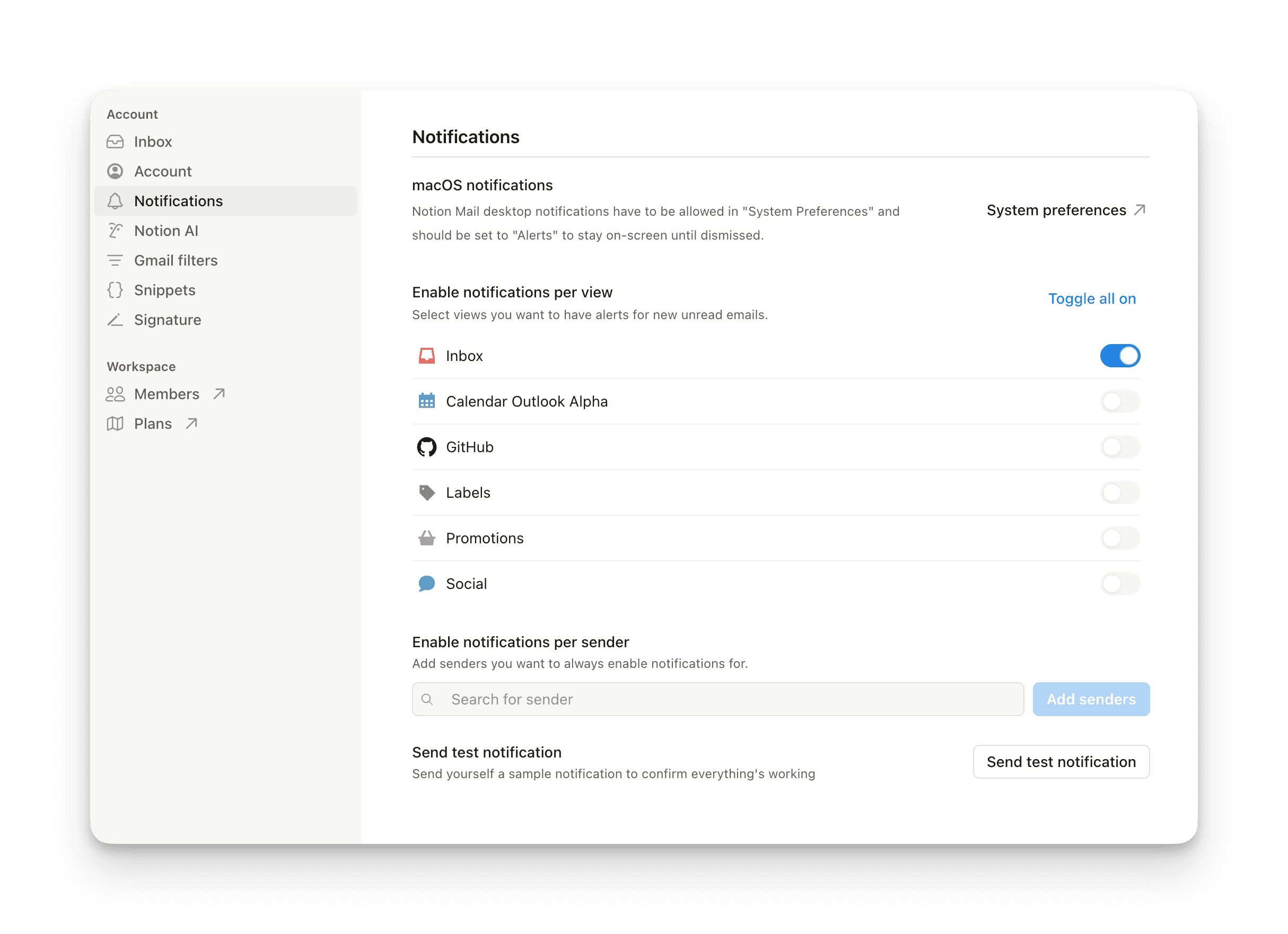
Go to Settings in Notion Mail → Notifications to enable and customize notifications for:
Mac OS: Set your system preferences to enable or disable desktop notificationsEnable notifications per view: Choose which views can send notifications. Inbox notifications are on by default, and notifications for other views are off by default — so you can opt in only to the views you care about.Enable notifications per sender: Add specific email addresses that should always notify you. This action can still trigger notifications even if the message lands in a view with notifications turned off.
Go to Settings in Notion Mail → Notion AI to:
Create an auto label that Notion AI can apply based on your prompt.
See any existing auto labels you have, along with a description. Select
•••next to an auto label toEditorDeactivateit.
Go to Settings in Notion Mail → Gmail filters to:
Manage the Gmail filters that are currently applied to your incoming mail.
Select
•••EditDelete
Go to Settings in Notion Mail → Snippets to:
Create a new snippet.
Search for a particular snippet.
See any existing snippets, along with their icon and shortcut. Select
•••next to a snippet toEditorDeleteit.
Go to Settings in Notion Mail → Signature to:
Toggle Notion Mail’s
Default signatureon or off.Enable or disable your signature on all replies and forwards → toggle on or off
Include on replies and forwards.Make changes to your signature in Gmail settings → select
Opennext toEdit signature in Gmail. This action opens your Gmail settings.