Import from Monday.com
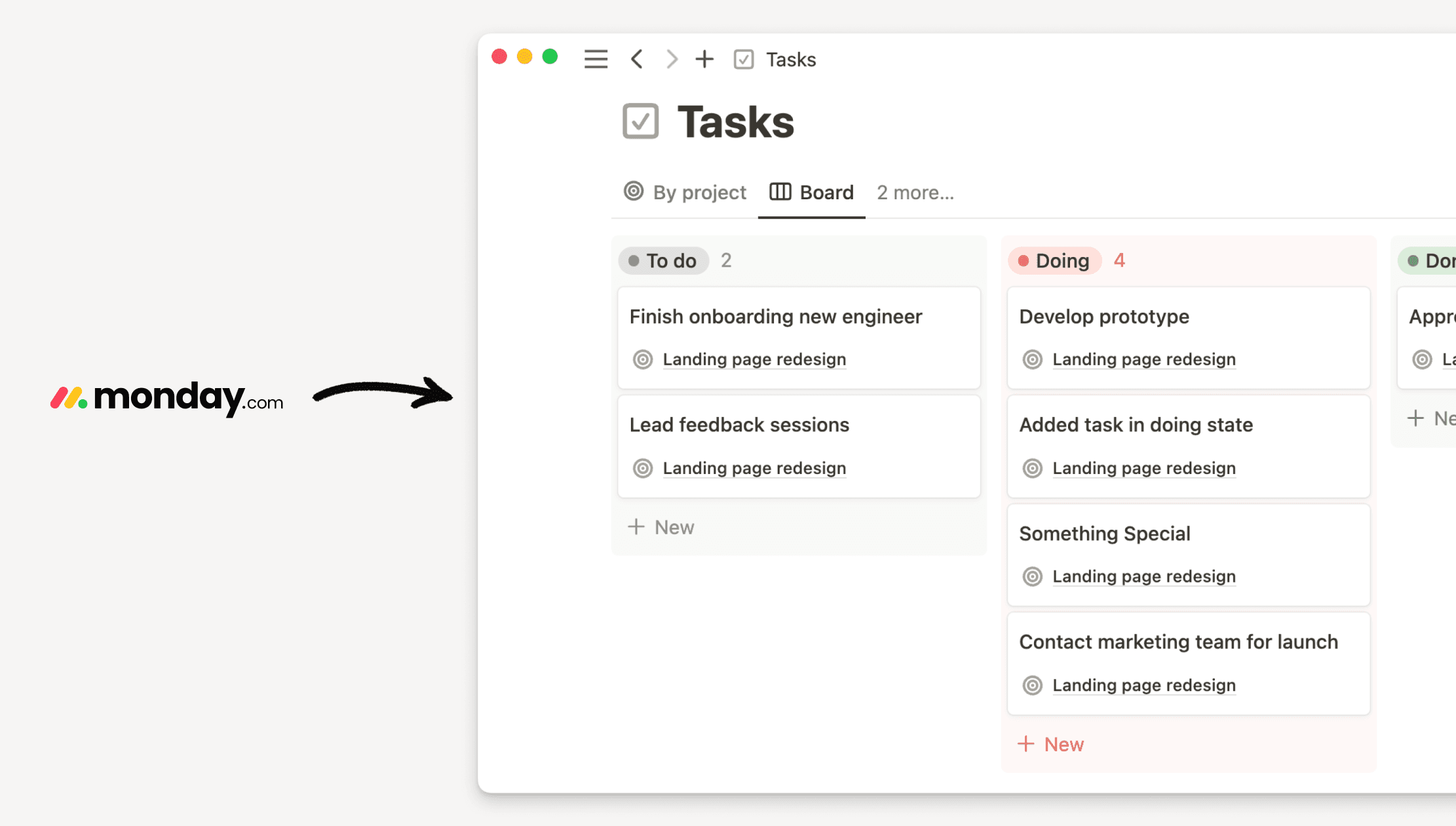
Easily import your data from Monday into Notion 📥
Jump to FAQsThe Monday.com importer helps you bring your all Monday.com boards into Notion.
✅ Imports | ❌ Doesn't import |
All board types | Automations |
Groups | Formulas |
Items | Dependencies |
Updates (limited) | Integrations |
Comments | Monday Docs (a link to the original doc will be added instead) |
Files | Certain column types (see Limitations) |
Monday.com → Notion mapping
If you import a board that isn't a task or project board, it will be imported as a regular database following your original board's structure.
If you import a task board and related projects, tasks will be imported into the task database and a project will be created in the project database using the task board's name.
If you import a task board without any related projects, tasks will be imported into the task database and a project will be created using the task board's name.
Every teamspace in Notion gets one project and one task database per import. If you have multiple projects within one teamspace, all projects will go into the same database unless imported in batches. As a workaround, import additional projects into a separate teamspace and move them manually, or import your account in batches.
The importer will import all information about task owners and due dates.
An assignee in Monday.com must be named
Owner,Assignee, orPersonfor that information to appear in Notion as an assignee. Any project or task board should only have one column to indicate an assignee.
Imports can take anywhere from a few minutes to several hours depending on size. You'll receive an email notification once your import is complete.
For most reliable results, imports of up to ~8,000 tasks and ~100 projects are recommended. Larger imports may take several hours or fail.
Tip: Split large migrations into multiple batches.
Review the progress of your import in
Settings→Import. There you can see the status of your import and completed imports.
Go to
Settingsin your sidebar →Import→Third party imports→Monday.com.Enter your email and API token, which you can find using the instructions here. Select
Authenticatewhen you're done.Select your Monday.com workspace in the dropdown that appears. You can only import one workspace at a time.
Choose your import type.
Projects & Tasksonly: converts your project and task boards into project and task databases in Notion.Full Import: imports all your board types as regular databases in Notion. You can exclude project and task boards from this and import them separately to make full use of Notion's project and task databases.
Select the folders and boards you want to import. You can also select the teamspace you want to send your imports to.
Select
Nextto start the import. You can close the import window, the import will continue in the background.Once the import is complete, you'll receive an email confirmation.
All imported content lands in the teamspace you selected during setup.
Task owners, due dates, and board structure are preserved where supported.
Cross-board columns will only appear in Notion if the referenced board was also included in the import.
Review and clean up your workspace before sharing with your team - permissions are not imported.
Some column types won't be supported in the import, including: Buttons, Monday Docs, Integrations, Formula, Progress, Dependency, Time Tracking, World Clock, Ratings, and Auto Numbers.
Tip: Prep boards before importing — replace unsupported columns with supported ones where possible, or plan to recreate them in Notion afterward.
Columns that point to another Monday board won't appear in Notion if that board wasn't included in the import.
Tip: Import related boards together, especially if there are cross-board links.
Advanced features like dependencies, advanced timelines, and automations won't carry over.
Tip: Recreate these in Notion using relations, rollups, or timeline views.
The import is a one-time event; future changes in Monday.com won't automatically reflect in Notion.
You can import tasks from multiple workspaces, but you're limited to one workspace at a time.
You can't preview an import beforehand.
Monday.com columns didn't migrate
Why this happens: The column references another board that wasn't imported or the column type isn't supported (see Limitations above).
To fix: Import all related boards along with the main board, replace unsupported columns with supported ones before importing.
Assignee information didn't import correctly
Why this happens: The assignee column wasn't named
Owner,Assignee, orPerson, or there were multiple assignee-type columns on the board.To fix: In Monday.com, rename your assignee column to one of the supported names and ensure there is only one assignee column per board before re-importing.
FAQs
Why aren’t all columns migrating to Notion?
Why aren’t all columns migrating to Notion?
If a missing column is linked to a board that hasn’t been imported, it won’t appear in Notion. To resolve this, make sure to import any related boards along with the main data.
Are all column types supported?
Are all column types supported?
A few Monday.com columns are not yet supported in the import, including:
Buttons
Monday Docs
Integrations
Formula
Progress
Dependency
Time Tracking
World Clock
Ratings
Auto Numbers